
This will show you how to remote control Mac computers with other Mac computers.
I use Apple’s built in software for this, so there is no need to download anything.
I often have this paired with the TeamViewer application set up as well.
Set Up Mac for Being Controlled
Navigate to System Preferences.
Click the sharing tab.
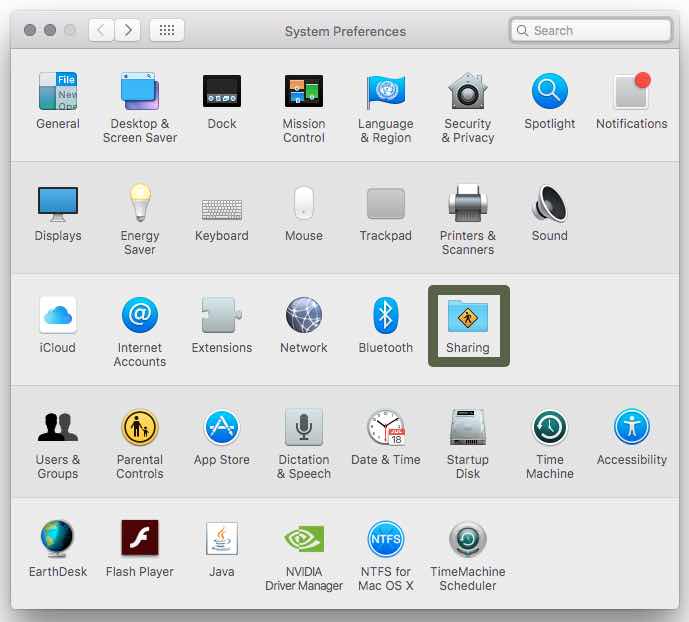
Find Remote Management and check mark it. Click it for the menu.
It will tell you from here that remote management is on and accessible at an IP address (in my case for my main computer, 192.168.1.0).
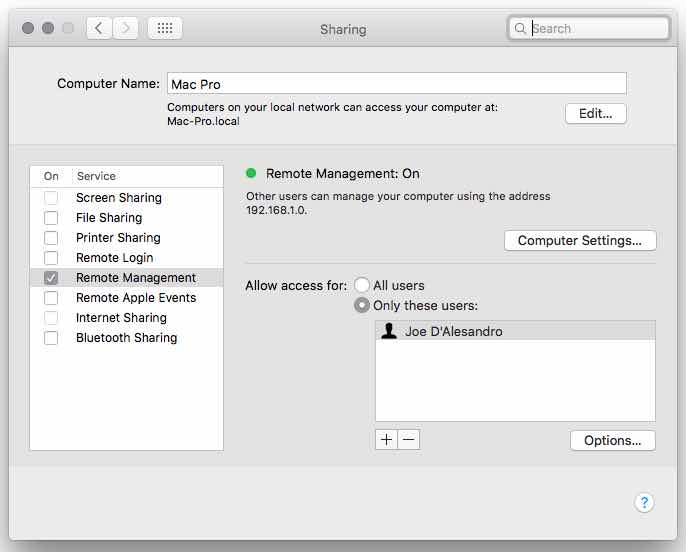
You can set a password for access by going to Computer Settings. If you don’t, it will default to asking for the username and password of the Mac.
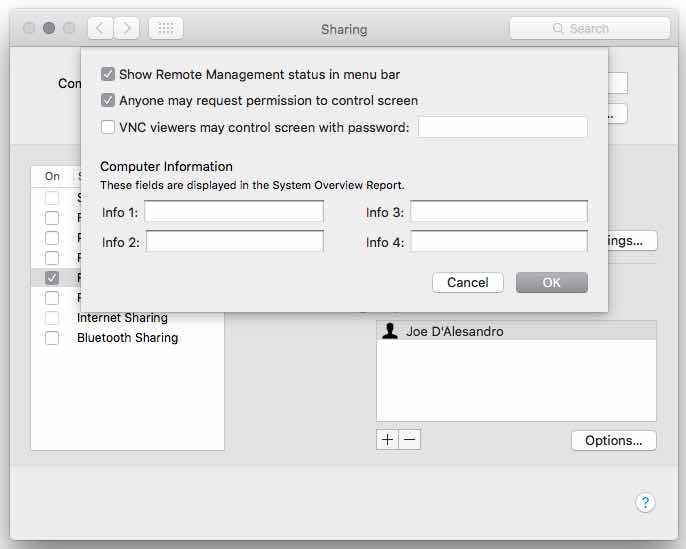
Set Up Mac for Controlling
Make sure your Mac is on the same network as the device you are controlling – more on connecting outside the network below.
Open Finder.
Press Cmd+K on your keyboard.
The Apple VNC Viewer will appear:
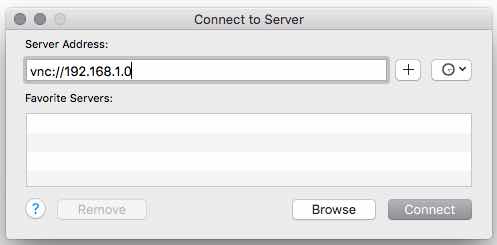
From here, enter the Mac’s IP address you are connecting to and click connect.
You will have to enter the username and password for the machine if you didn’t configure a remote password above.
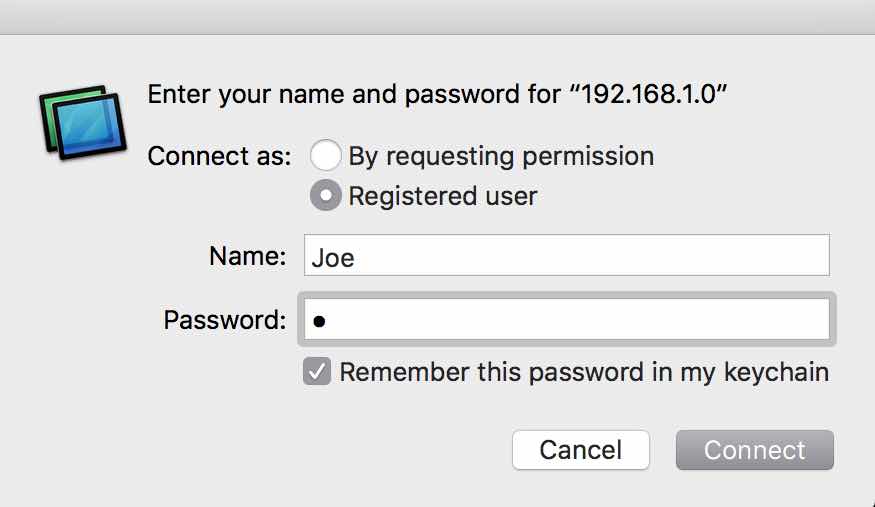
You are now connected to the Mac!
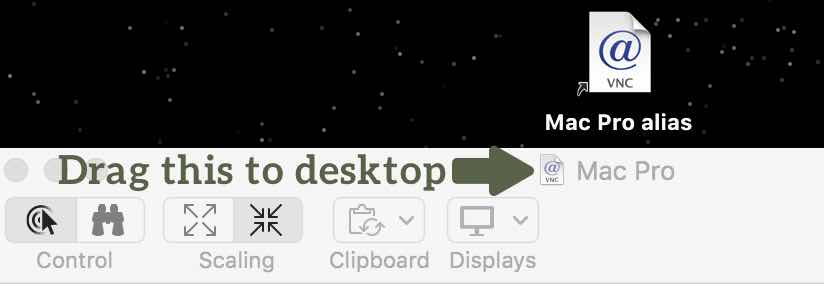
You can create a shortcut by dragging the icon at the top of the window to the desktop. This is called a vncloc file.
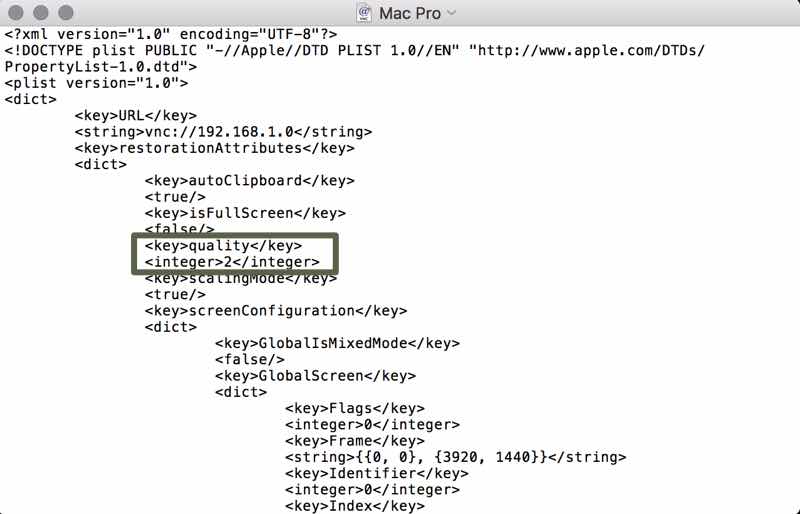
You can change the quality by showing the original file and opening with TextEdit.
Find the quality parameter and choose a value 0 to 4. There are some other useful parameters here.
[insert_php] include(‘/home2/eeygktmy/public_html/exphp/remote-access-drop-in/outside-network.html’); [/insert_php]